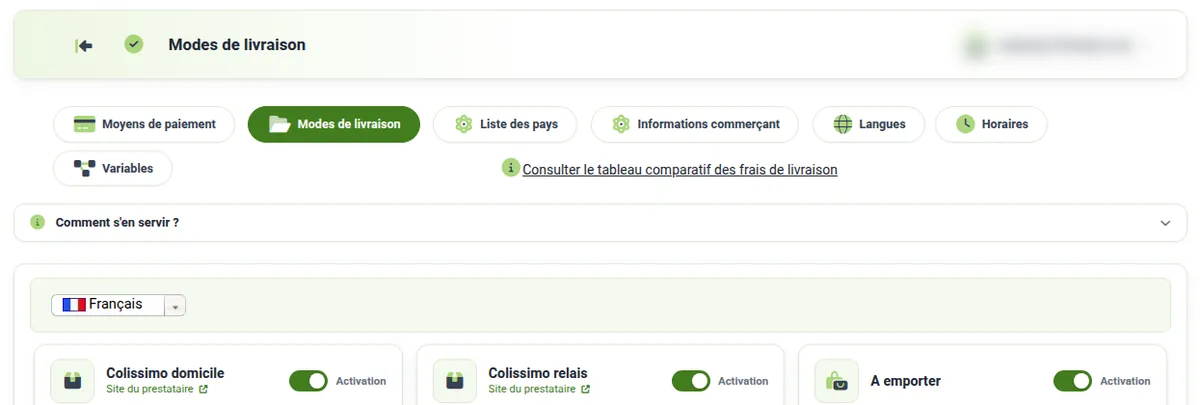
Open the “Options” menu and choose the “Delivery methods” tab:
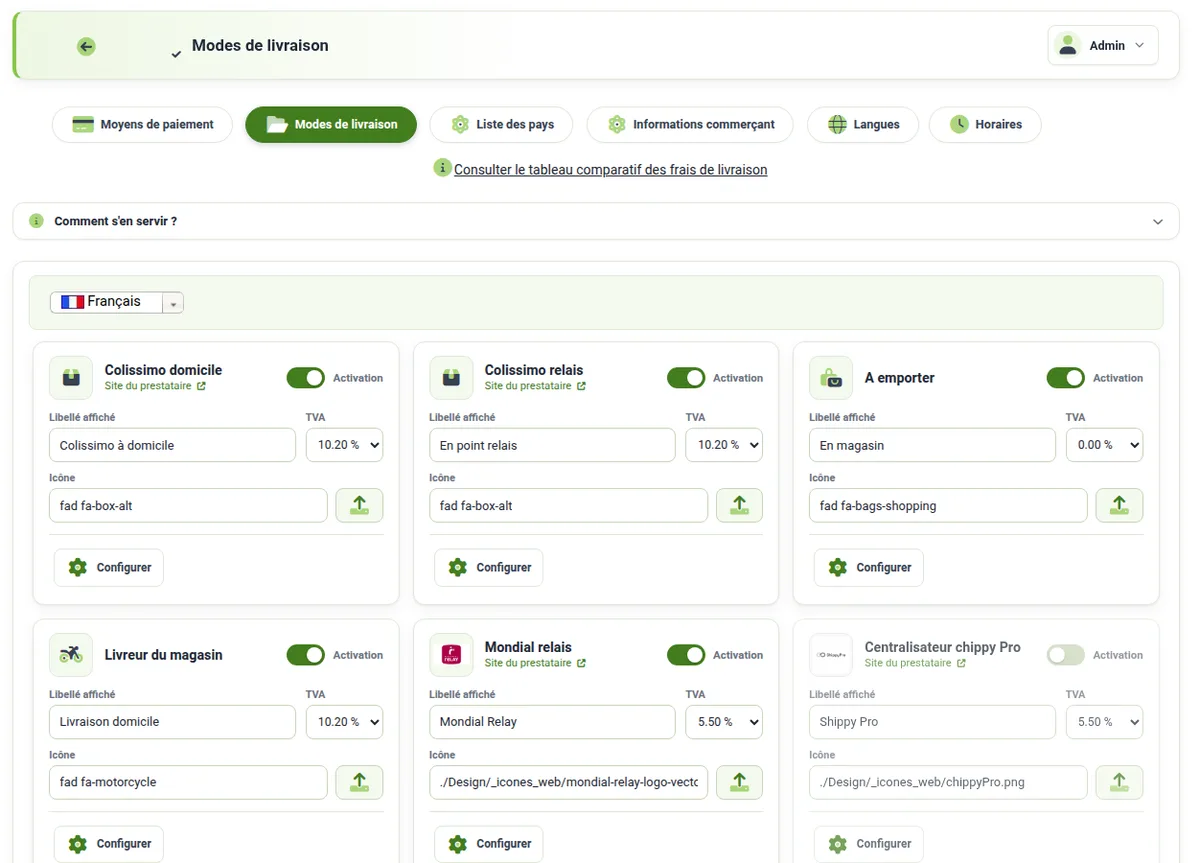
Check the comparison sheet of delivery methods to review your costs:
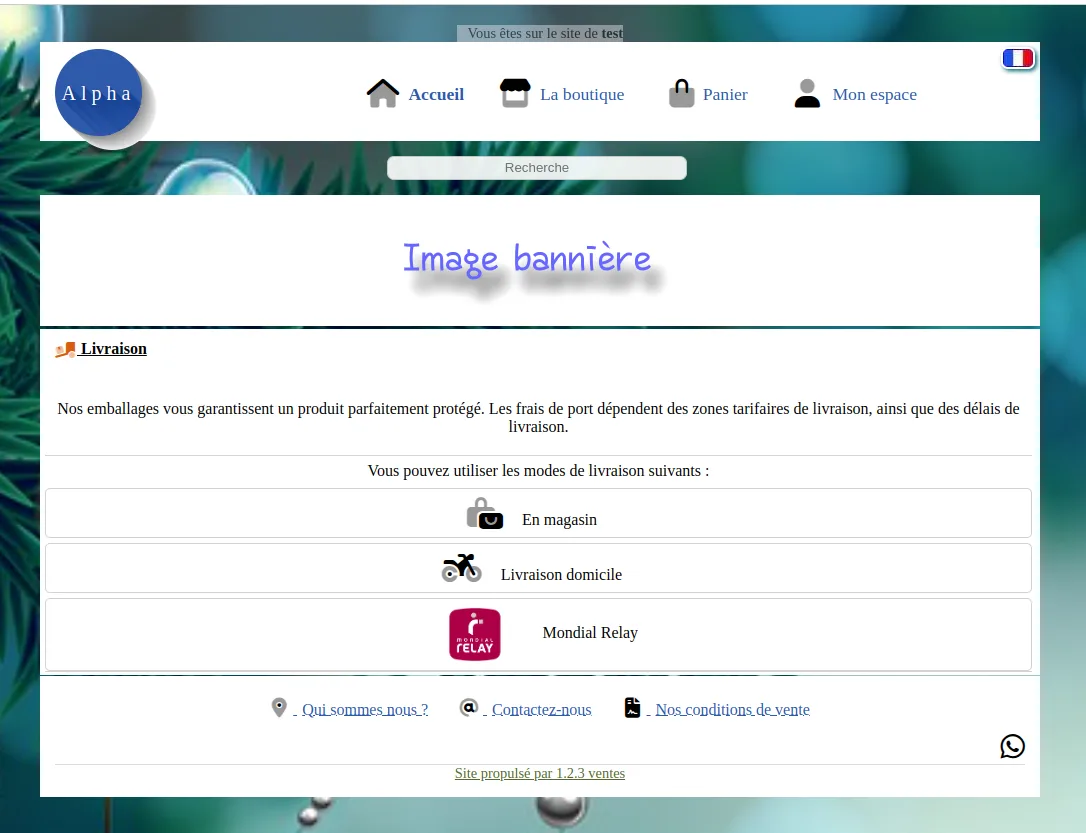
Activate the delivery methods you want to offer your customers with the corresponding switch. You can change the label and the icon. They then appear in your shop, at the Basket / Delivery step:
For each activated delivery method, click “Configure” to enter your account details if needed. Some methods do not need an account, others do. To create an account with a carrier, follow the link provided:
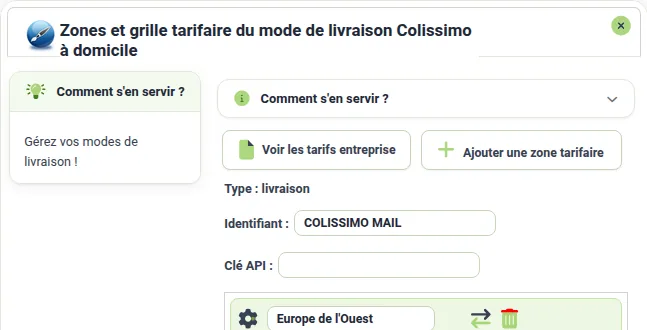
Example with Colissimo: you can choose the delivery zones. A set of zones is already predefined:
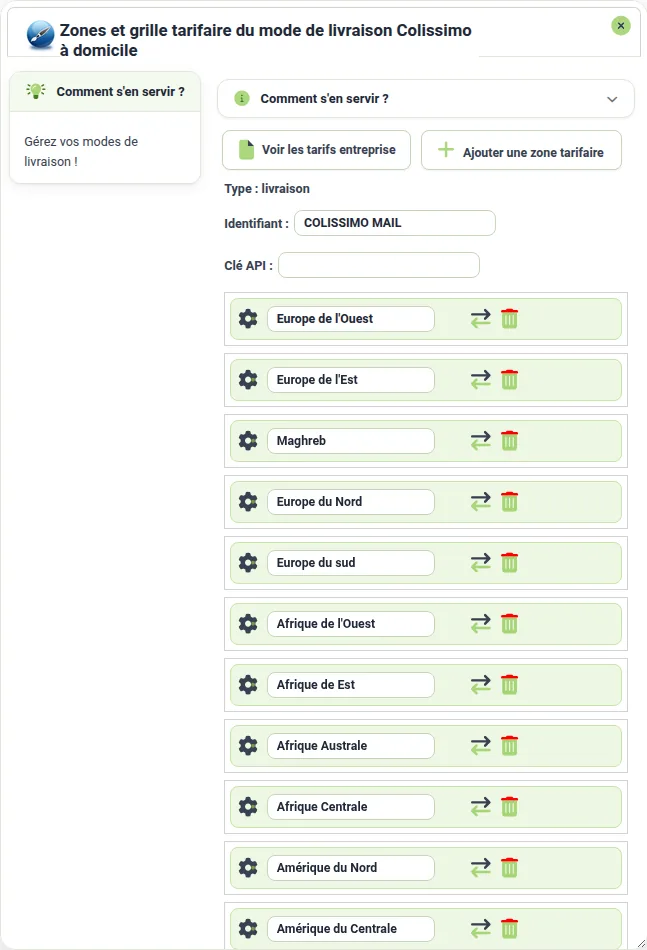
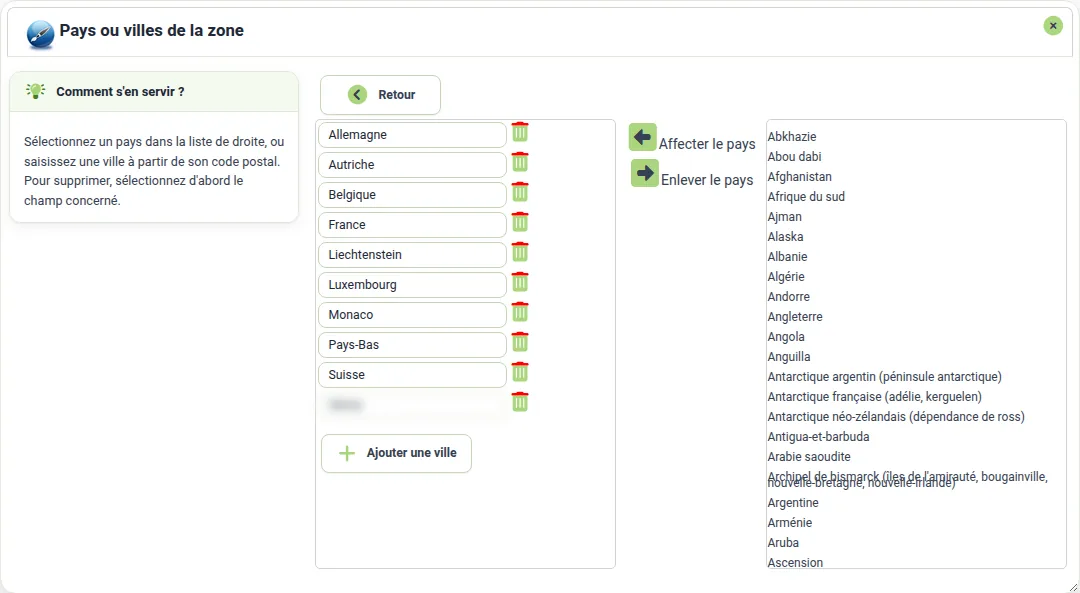
For each zone, you assign the countries concerned. This way you group rates by distance or by customs charges, for example.
For each zone, then enter your rates by weight band. To offer free delivery above a certain order amount, use the rules engine in the “Orders” menu.
See also: Which carriers are available?, How do I manage shipping costs?, How do I put products on sale and offer free delivery?.